The trial versions of all our templates can be activated by enabling our 100% safe & secure trial version macro. After enabling the macro, all the sheets in the template will be visible and you can try out the template functionality.
The steps that need to be completed to enable the trial version macro depend on the user's macro settings but before we get there, you first need to click the enable editing button from the protected view message bar to activate the file.
Has the trial version macro been blocked?
If you encounter the above message, it means that our trial version macro has been blocked. This is an enhanced security feature from Microsoft to block most macros included in files downloaded online. Our trial version macro is 100% safe and secure and can be unblocked by completing the following steps:
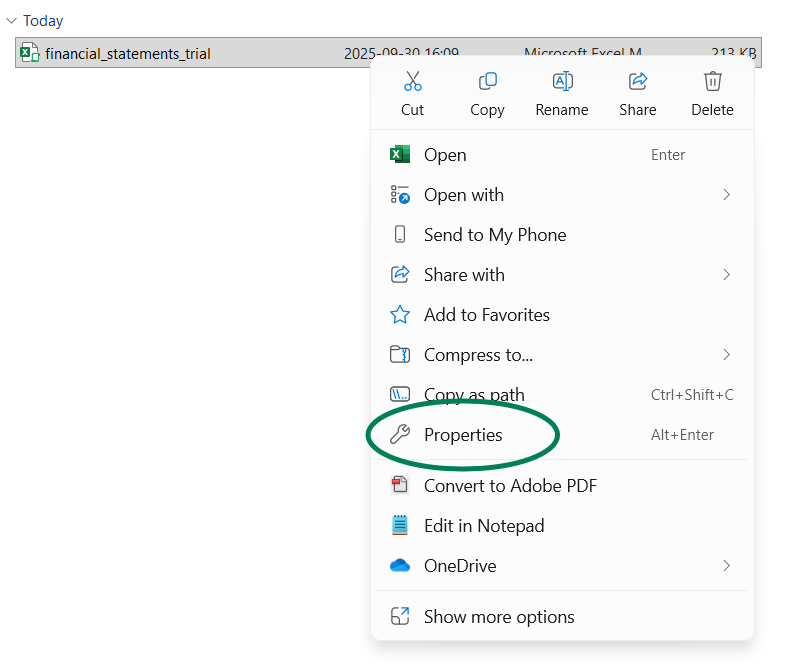
- Close the trial version in Microsoft Excel and open your Downloads folder in Windows File Explorer. Find the trial versions file - it should be one of the last files downloaded, the file name should end in trial and the file type should be Microsoft Excel Macro-Enabled Worksheet.
- Right click the file name and select the Properties option.
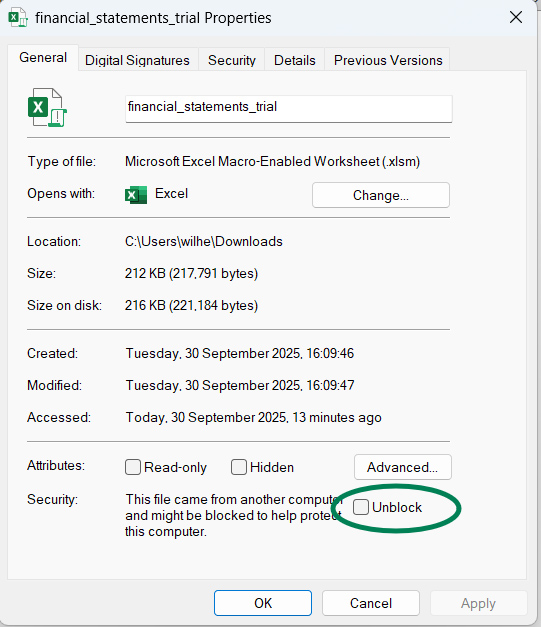
- Open the General tab and click the unblock option under the Security section at the bottom of the screen. This will unblock the trial version macro. Once you have clicked the check box, click OK to unblock the file.
- You can now double click the filename in the Downloads folder to open the trial version file again. The blocked macro message which was displayed earlier will now be replaced by a security warning message. All you now need to do is to enable the content to activate the trial version macro.
- As mentioned earlier, our trial version macro is 100% safe and secure to use and all of the above security measures implemented by Microsoft is to protect users from content which cannot be trusted. It is therefore applied universally to all macro-enabled Excel worksheets. If you want to explore macro security settings further, you can go here to read through the Microsoft guidance on unblocking macros downloaded from online resources.
What if the macro has not been blocked and there is no security warning?
If a downloaded file which contains macros has been unblocked or you use an older version of Microsoft Excel and your macro settings use the option to disable macros with notification, the Excel application either displays a security notification which can be used to enable the macro or it will automatically disable macros without displaying any message at all. This is because your settings allow a notification to be displayed such as the one included in the image below.

Our trial version macro can only be enabled if your Macro Security Settings are set to display a notification for files containing macros - this level of macro security results in a security notification being displayed whenever an Excel file contains macros and the user therefore has the option to enable the macro content. The security notification is usually displayed directly below the ribbon and you can click the Enable Content button in order to enable the trial version macro. If you elect to enable the macro content, the trial version will be activated and all the template sheets will be displayed.
If no security notification is displayed after opening our trial version or unblocking the file, you can complete the following steps in order to enable the trial version macro:
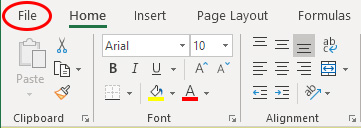
- Click the File tab on the ribbon
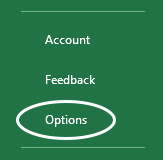
- Select the Options option at the bottom of the tab (or Excel Options button in earlier versions of Excel)
- Select the Trust Center option
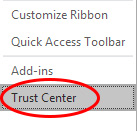
- Click the Trust Center Settings button

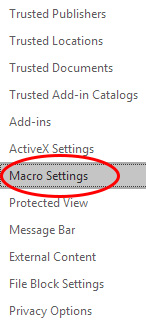
- Select the Macro Settings option
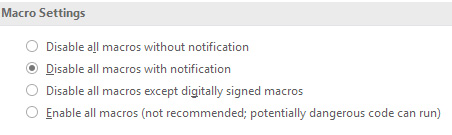
- Select the "Disable all macros with notification" option - note that we don't recommend ever setting the macro security level to "Enable all macros" because this may result in potentially harmful macros being opened and run automatically - and click the OK button twice to save your new settings
- If you still have the trial version of the particular template open, close the file now. Reopen the trial version of the template - you should now receive the security notification which can be used to enable the trial version macro by clicking the Enable Content button.
Note that enabling our 100% safe & secure trial version macro has no effect on other macros in your other Excel files. If you retain the Macro Security Settings of "Disable all macros with notification", the security notification will be displayed whenever a file which contains a macro is opened. As long as you know that you should never open macros that you don't trust, this setting poses no security risk.
If however you feel more secure when Excel disables all macros by default, you can complete the above steps again in order to change the Macro Security Settings to "Disable all macros without notification". All macros will then be disabled
when you open a file which contains macros.